

In this article
- Still relying on Google Docs' built-in equation editor?
- Why equation editor Google Docs users choose MathType
- Features that make MathType stand out
- See MathType in action
- How to get started with MathType for Google Docs
- Create math equations in Google Docs the way you prefer
- How to get started with MathType for Google Docs
- Real-world applications across STEM education
- Why MathType is the Equation editor Google Docs users need
Still relying on Google Docs’ built-in equation editor?
Let’s be honest. Google’s built in equation editor is good enough… until it isn’t.
The moment you need to write more than a few fractions or superscripts, creating math equations in Google Docs quickly becomes frustrating. Advanced notation takes longer than it should, editing existing equations is inefficient, and formatting complex expressions often interrupts your workflow.
For educators, students, researchers, publishers, and STEM professionals, writing equations should never interrupt the creative process. The right equation editor Google Docs solution should let you focus on explaining ideas instead of fighting formatting tools.
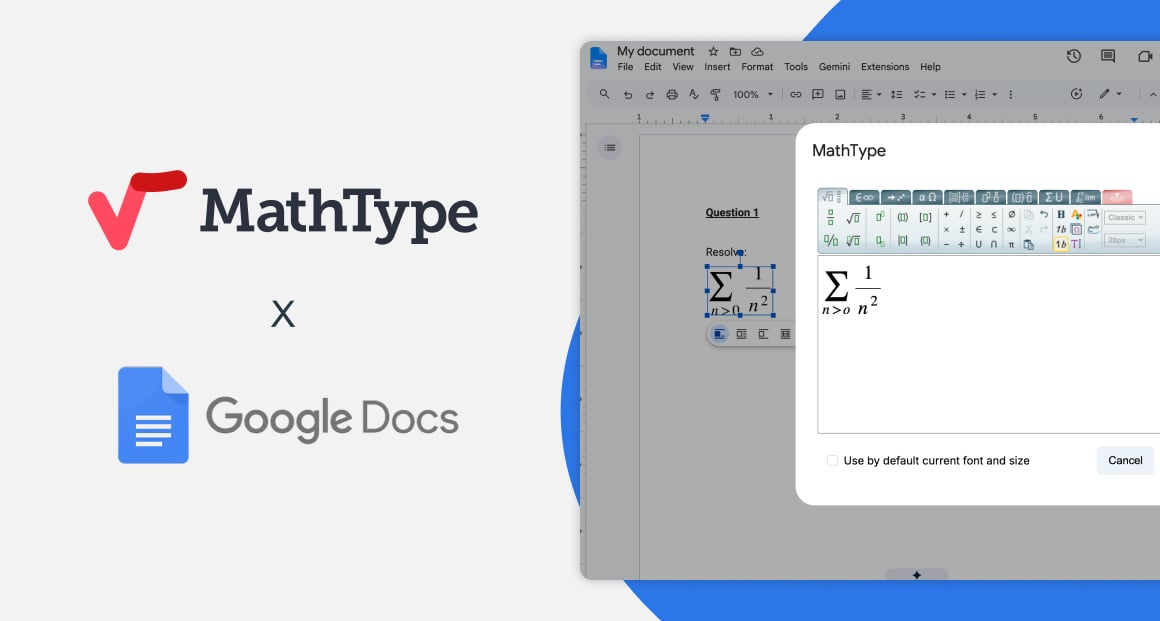
That’s exactly where MathType for Google Docs makes a difference. Developed by Wiris, MathType is a professional equation editor that integrates directly with Google Docs and Google Slides, allowing users to create, edit, and manage mathematical expressions without leaving Google Workspace. Whether you’re preparing teaching materials, collaborating on research, or creating technical documentation, it offers a faster and more intuitive way to write math equations in Google Docs.
Why equation editor Google Docs users choose MathType
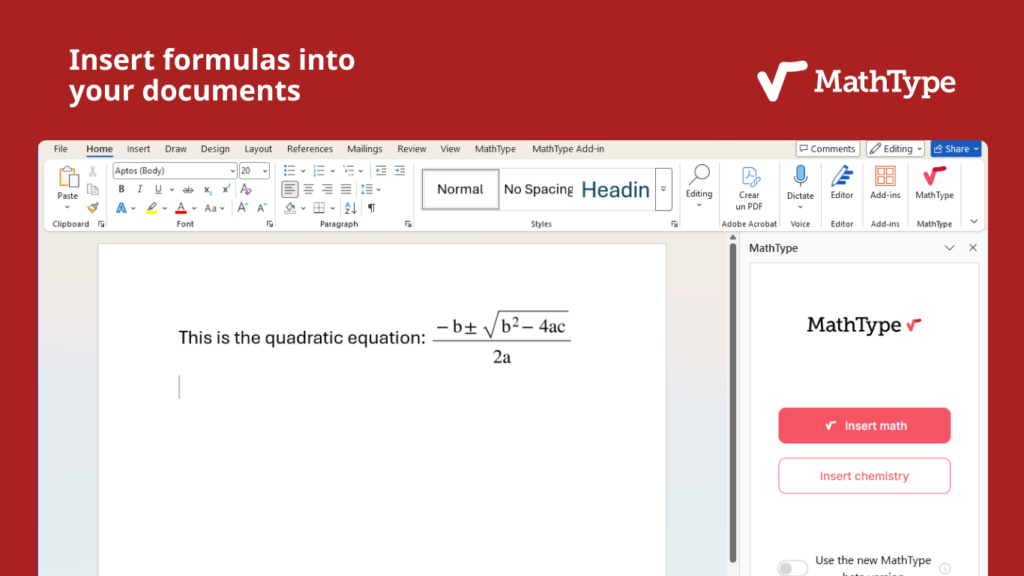
Google Docs is a powerful environment for writing and real-time collaboration, especially in education. When documents include more advanced STEM content, MathType for Google Docs extends that familiar experience with dedicated tools for creating, editing, and managing mathematical and scientific notation.
MathType is Wiris’ professional equation editor for Google Workspace, designed for educators, students, researchers, and other users who regularly work with math content. It integrates directly into Google Docs and Google Slides, so users can create professional equations while staying within their existing collaborative workflow.
For users comparing equation-writing options in Google Docs, MathType adds capabilities specifically designed for more demanding STEM content:
| Google Docs equation editing | MathType for Google Docs |
| Suitable for creating basic math notation | Designed for both basic and advanced STEM notation |
| Standard equation-writing tools | Visual editor with more than 500 symbols and templates |
| Keyboard and toolbar-based input | Multiple input methods, including visual editing, handwriting recognition, LaTeX, and MathML |
| General-purpose document workflow | Dedicated tools for math and scientific content, including ChemType |
| Equations can be added to collaborative documents | MathType equations can be created, reopened, and edited within the Google Workspace workflow |
| Built into Google Docs | Integrates with both Google Docs and Google Slides |
Once installed from the Google Workspace Marketplace, MathType opens directly within Google Docs. Users can create an equation, insert it into the document, and reopen it in MathType whenever changes are needed. This makes it easier to update teaching materials, revise assessments, refine technical documentation, or reuse STEM content over time.
Rather than replacing the collaborative advantages of Google Docs, MathType for Google Docs builds on them by adding specialized equation-writing capabilities for users who need to work with math and scientific notation regularly.
Features that make MathType stand out
Choosing an equation editor that Google Docs users can rely on is about more than inserting equations. It is about creating mathematical content efficiently, maintaining consistency across documents, and supporting every member of the learning community.
Some of the capabilities that distinguish MathType include:
- More than 500 mathematical symbols and templates.
- Multiple input methods, including visual editing, handwriting recognition, LaTeX, and MathML.
- Editable equations that can be reopened at any time.
- ChemType integration for inorganic chemistry notation.
- Accessibility support for screen readers and assistive technologies.
- Seamless integration with Google Docs and Google Slides.
- High-quality printing of mathematical expressions.
These features help educators create richer learning materials, enable researchers to prepare technical publications more efficiently, and allow students to produce professional assignments without leaving Google Workspace.
Rather than treating equations as static objects, MathType keeps them editable throughout the document’s lifecycle, making future revisions faster and significantly reducing repetitive work.
See MathType in action
Sometimes the easiest way to understand the difference is to watch the editor in use.
Video: How to install MathType for Google Workspace
The video demonstrates how quickly users can install the add-on, launch the editor, create equations, and insert them directly into Google Docs. It also provides a practical overview of the interface, helping first-time users become productive in just a few minutes.
How to get started with MathType for Google Docs
Getting started with MathType for Google Docs is straightforward. The add-on can be installed directly from the Google Workspace Marketplace and integrates seamlessly with Google Docs and Google Slides, allowing users to create professional mathematical notation without switching between different applications.
Individual users can install the add-on using their Google account, while educational institutions and organizations can deploy it across an entire Google Workspace domain through their administrator. If an institution manages its own Google Workspace environment, the administrator may need to allow the MathType add-on before users can access it.
Once installed, using MathType follows a simple workflow:
- Install MathType for Google Docs from the Google Workspace Marketplace.
- Open a document in Google Docs or a presentation in Google Slides.
- Launch MathType from the Extensions menu.
- Create an equation using the visual editor, handwriting recognition, or LaTeX and MathML input.
- Insert the equation into the document and continue writing.
Unlike many basic equation tools, MathType keeps inserted equations editable. Whenever changes are required, simply select the equation, reopen MathType, make the necessary modifications, and update it without rebuilding the entire expression.
New users can also explore every feature through the 30-day free trial, making it easy to evaluate whether MathType fits their teaching, learning, or research workflow before purchasing a license.
Create math equations in Google Docs the way you prefer
Whether you saw your preferred method in the video above or have a specific workflow in mind, MathType adapts to how you naturally write math. Some users prefer a visual interface, while others work faster using handwriting or LaTeX.
Instead of forcing everyone into a single workflow, MathType for Google Docs provides multiple input methods that suit different levels of experience.
Use the visual equation editor
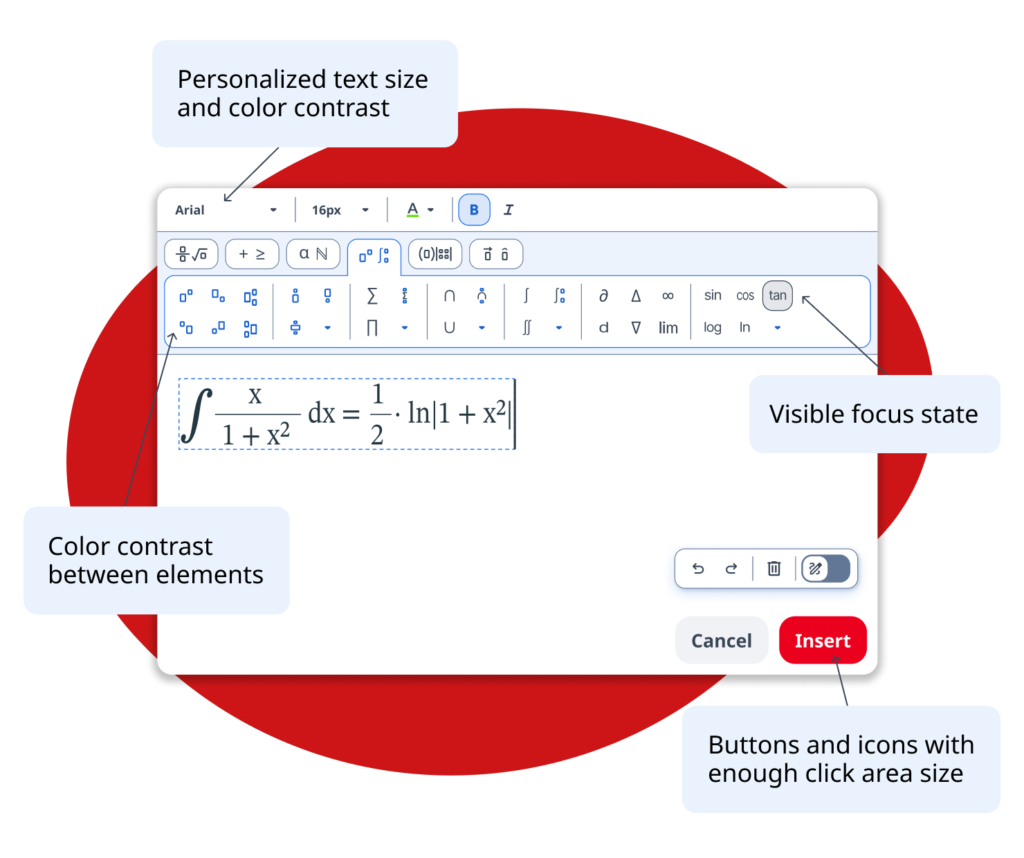
The classic MathType editor provides an intuitive visual environment where users can build equations by selecting templates, operators, symbols, fractions, matrices, roots, integrals, summations, and many other mathematical structures.
More than 500 mathematical symbols are available, making it suitable for virtually every STEM discipline.
The editor also allows users to configure the default font and font size for newly created equations, helping maintain consistency throughout large documents.
Because the interface is visual, users can create professional-looking equations without memorising syntax or commands.
Write equations by hand
Not everyone thinks in keyboard shortcuts.
MathType includes a handwriting recognition mode that allows users to draw mathematical expressions naturally using a mouse, touchscreen, stylus, or graphics tablet.
As the equation is written, MathType converts the handwritten symbols into professionally formatted mathematical notation.
If recognition isn’t perfect, users can quickly correct individual symbols or continue refining the equation using the classic editor. Switching between handwriting recognition and the visual editor is seamless, allowing every user to choose the workflow that feels most natural.
This feature is particularly valuable for teachers preparing classroom resources or students who already solve problems by writing them manually before digitising their work.
Work with LaTeX and MathML
Advanced users often prefer working directly with markup languages.
MathType includes dedicated editing windows for both LaTeX and MathML, making it possible to edit existing code or paste mathematical expressions from external sources.
Developers, researchers, and experienced STEM professionals can therefore combine the convenience of a visual editor with the flexibility of code-based workflows whenever needed.
This combination makes MathType for Google Docs suitable for both beginners and advanced users.
For advanced users, WIRIS also provides dedicated Debug Windows for editing LaTeX and MathML directly. Learn more in the official documentation.
How to get started with MathType for Google Docs
Getting started with MathType for Google Docs is straightforward. The add-on can be installed directly from the Google Workspace Marketplace and integrates seamlessly with Google Docs and Google Slides, allowing users to create professional mathematical notation without switching between different applications.
Individual users can install the add-on using their Google account, while educational institutions and organizations can deploy it across an entire Google Workspace domain through their administrator. If an institution manages its own Google Workspace environment, the administrator may need to allow the MathType add-on before users can access it.
Once installed, using MathType follows a simple workflow:
- Install MathType for Google Docs from the Google Workspace Marketplace.
- Open a document in Google Docs or a presentation in Google Slides.
- Launch MathType from the Extensions menu.
- Create an equation using the visual editor, handwriting recognition, or LaTeX and MathML input.
- Insert the equation into the document and continue writing.
Unlike many basic equation tools, MathType keeps inserted equations editable. Whenever changes are required, simply select the equation, reopen MathType, make the necessary modifications, and update it without rebuilding the entire expression.
New users can also explore every feature through the 30-day free trial, making it easy to evaluate whether MathType fits their teaching, learning, or research workflow before purchasing a license.
Real-world applications across STEM education
A professional equation editor Google Docs solution becomes even more valuable when used in real educational and professional environments.
Teachers can prepare lesson plans, worksheets, quizzes, and examinations containing clear mathematical notation while collaborating with colleagues in real time. Since equations remain editable, updating classroom materials from one academic year to the next takes only a few clicks.
Students benefit from producing cleaner assignments and reports without relying on screenshots or handwritten formulas inserted as images. Whether solving algebra problems, writing calculus exercises, or documenting engineering projects, they can create professional-looking math equations in Google Docs that remain consistent throughout the document.
Researchers and technical writers often combine the visual editor with LaTeX workflows. Instead of choosing between ease of use and technical precision, MathType supports both approaches within the same interface.
Chemistry educators can also use ChemType to create inorganic chemistry notation directly inside Google Workspace, reducing the need for additional specialized software.
Because MathType integrates naturally with Google Docs and Google Slides, teams can collaborate on teaching materials, technical reports, and presentations without disrupting their existing workflow.
Why MathType is the Equation editor Google Docs users need
Choosing an equation editor Google Docs solution is about far more than inserting mathematical symbols into a document. It is about creating an efficient workflow that supports teaching, learning, research, and collaboration.
MathType for Google Docs combines an intuitive visual editor with handwriting recognition, LaTeX and MathML support, editable equations, accessibility features, and ChemType integration, making it a comprehensive solution for anyone who regularly creates mathematical or scientific content.
Because it works directly inside Google Workspace, users can continue collaborating in Google Docs and Google Slides while producing professional-quality equations that remain editable over time.
Whether you’re preparing classroom resources, publishing research, creating technical documentation, or completing coursework, MathType helps remove the friction from writing math digitally so you can focus on communicating ideas clearly.
If you’re looking for a more capable way to create math equations in Google Docs, MathType is well worth exploring.
Start your 30-day free trial, discover everything the editor has to offer, and experience a more efficient way to write math in Google Workspace.
Already using MathType? We’d love to hear about your experience. Consider leaving a review on the Google Workspace Marketplace to help other educators, students, and STEM professionals discover how MathType can improve the way they create mathematical content.
Share


Discover why thousands trust MathType
Enjoy 30 days of free access to MathType for Office Tools.