


The math assessment tool to create and automatically evaluate online quizzes with equations, graphs, or text answers, fully integrated with online teaching platforms like Moodle or Canvas.
Trusted by 100,000+ organizations globally








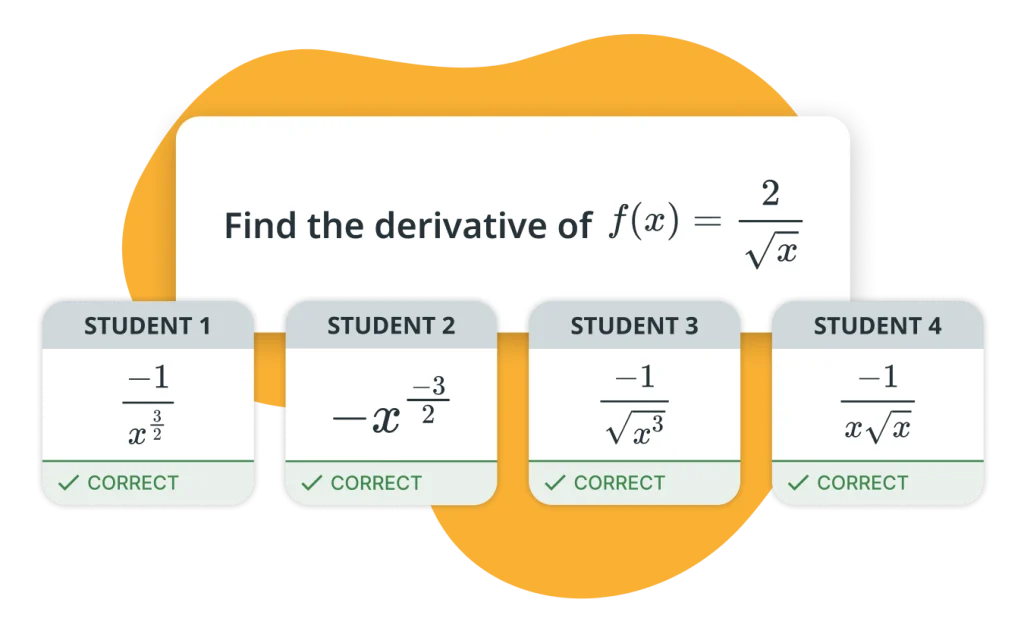
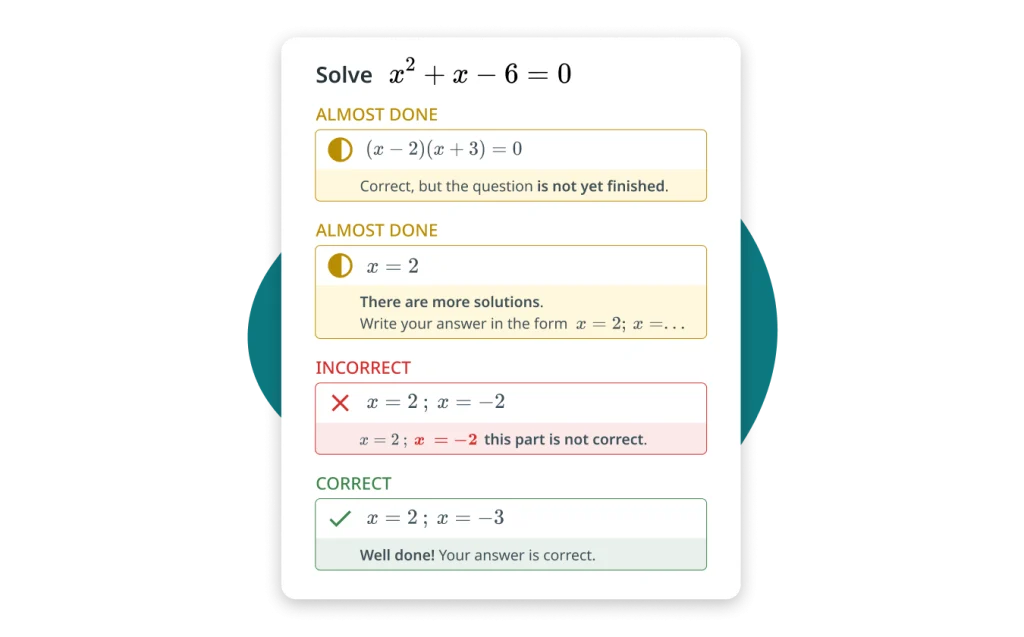
WirisQuizzes validates student answers for math equivalence, correct syntax, numerical tolerances, and proper unit handling. You can script custom grading functions for the answers to meet specific conditions. Students answer using MathType, the integrated equation editor with handwriting recognition.
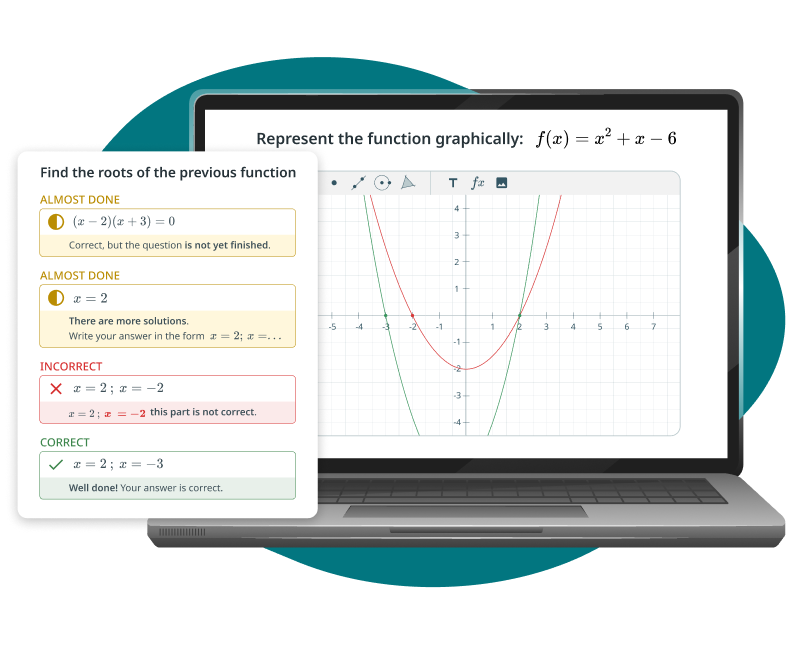
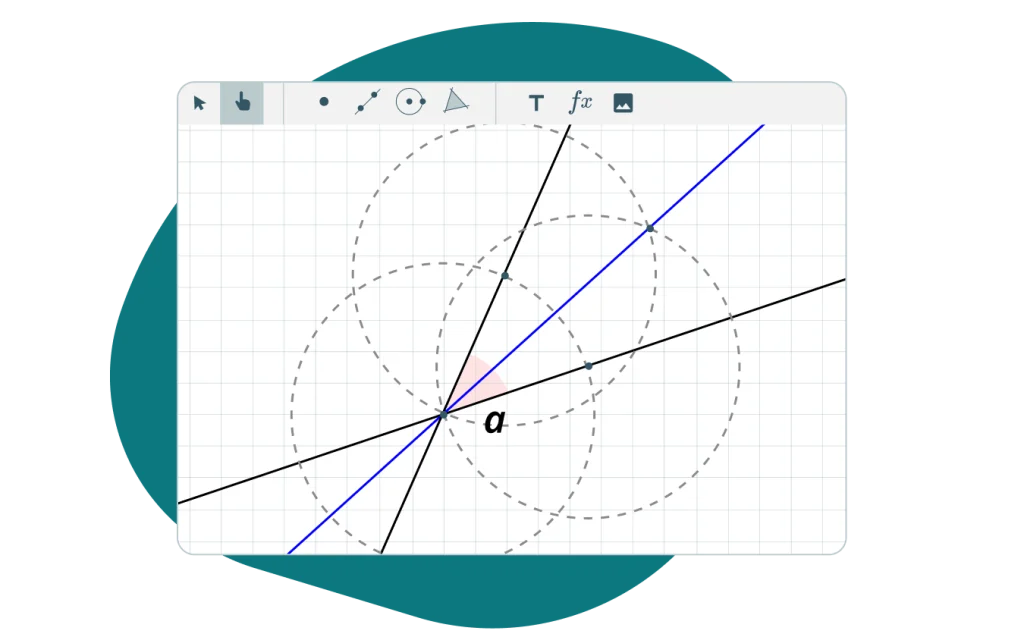
Create dynamic problems where students demonstrate their understanding by plotting points, drawing functions, or interpreting statistic charts.
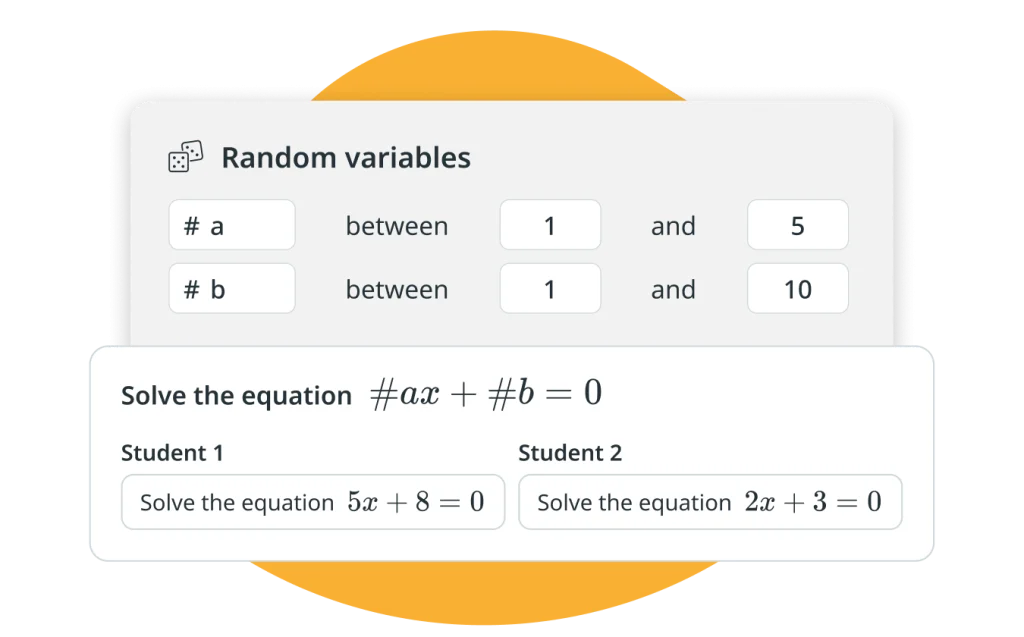
Use random variables and scriptable logic to generate thousands of unique variations from a single question, ensuring each student receives a different version of the problem, reducing cheating, scaling content creation, and enabling infinite practice.
With WirisQuizzes, you can go beyond a simple right or wrong feedback by providing a targeted hint for a non-simplified expression, explaining common mistakes, or describing the steps for a complete solution to teach students how to reach the correct result.

It is cool the possibility to make questions with really specific math rules. I can finally build the complex problems I want and just trust the engine to grade my students’ answers right.
Laura P.
Handwriting for answering is fantastic. Students find it so much more natural, especially on a tablet. It just removes a layer of friction and lets them focus on the actual math.
Joseph A.
The random values feature is a time saver. I just create one good question, and boom, I get a ton of different versions. We no longer have to create so much content by hand.
Sarah Z.

Try WirisQuizzes, the assessment tool that integrates on your preferred educational platform.
Empowering STEM education